


Have you ever got a requirement to display another image on the hover of the main image on the Product listing page in Magento 2? I know your answer is Yes. This is a common requirement of many Magento 2 merchants.
What is the solution? Well, there are many solutions. You can achieve this functionality using third-party extensions, using a custom made extension, or utilizing an in-built Magento 2 product image class.
We will see different solutions for display a hover image on the product listing page in Magento 2.
Add Hover Image Using Modules
There are a couple of modules available in the Magento marketplace to implement hover image. Here we have listed a few modules.
We all know free extensions are not providing great support. If your client is concern about the support you should go with the paid extension.
- Change Product Image On Hover By Magenest
- Catalog Hover Image By Mageside
- Product Hover Image By Gaggle Thread
Add Hover Image in Magento 2 Programmatically in Custom Module
If you don’t want to go with the third-party module, here is the way to implement hover functionality in your own module.
Here I’m adding only important files of the module, assuming you have already developed a basic Magento 2 module.
Step 1: Add hover_image product attribute to save the hover image for particular product. Create AddHoverImageProductAttribute.php file under app/code/Codextblog/Productimagehover/Setup/Patch/Data directory. Add below code in the file.
<?php
/**
 * Copyright ©  All rights reserved.
 * See COPYING.txt for license details.
 */
declare(strict_types=1);

namespace CodextblogProductimagehoverSetupPatchData;

use MagentoCatalogModelProduct;
use MagentoCatalogModelProductAttributeFrontendImage;
use MagentoEavModelEntityAttributeScopedAttributeInterface;
use MagentoEavSetupEavSetup;
use MagentoEavSetupEavSetupFactory;
use MagentoFrameworkExceptionLocalizedException;
use MagentoFrameworkSetupModuleDataSetupInterface;
use MagentoFrameworkSetupPatchDataPatchInterface;
use MagentoFrameworkSetupPatchPatchRevertableInterface;

class AddHoverImageProductAttribute implements DataPatchInterface, PatchRevertableInterface
{

    /**
     * @var ModuleDataSetupInterface
     */
    private $moduleDataSetup;
    /**
     * @var EavSetupFactory
     */
    private $eavSetupFactory;

    /**
     * Constructor
     *
     * @param ModuleDataSetupInterface $moduleDataSetup
     * @param EavSetupFactory $eavSetupFactory
     */
    public function __construct(
        ModuleDataSetupInterface $moduleDataSetup,
        EavSetupFactory $eavSetupFactory
    ) {
        $this->moduleDataSetup = $moduleDataSetup;
        $this->eavSetupFactory = $eavSetupFactory;
    }

    /**
     * {@inheritdoc}
     * @throws LocalizedException
     * @throws Zend_Validate_Exception
     */
    public function apply()
    {
        $this->moduleDataSetup->getConnection()->startSetup();
        /** @var EavSetup $eavSetup */
        $eavSetup = $this->eavSetupFactory->create(['setup' => $this->moduleDataSetup]);
        $eavSetup->addAttribute(
            Product::ENTITY,
            'hover_image',
            [
                'type' => 'varchar',
                'label' => 'Hover',
                'input' => 'media_image',
                'frontend' => Image::class,
                'required' => false,
                'backend' => '',
                'sort_order' => '30',
                'global' => ScopedAttributeInterface::SCOPE_STORE,
                'default' => null,
                'visible' => true,
                'user_defined' => true,
                'searchable' => false,
                'filterable' => false,
                'comparable' => false,
                'visible_on_front' => false,
                'unique' => false,
                'apply_to' => '',
                'used_in_product_listing' => true
            ]
        );

        $entityTypeId = $eavSetup->getEntityTypeId(Product::ENTITY);
        $attributeSetIds = $eavSetup->getAllAttributeSetIds($entityTypeId);
        foreach ($attributeSetIds as $attributeSetId) {
            $groupId = $eavSetup->getAttributeGroupId($entityTypeId, $attributeSetId, "image-management");
            $eavSetup->addAttributeToGroup(
                $entityTypeId,
                $attributeSetId,
                $groupId,
                'hover_image'
            );
        }

        $this->moduleDataSetup->getConnection()->endSetup();
    }

    public function revert()
    {
        $this->moduleDataSetup->getConnection()->startSetup();
        /** @var EavSetup $eavSetup */
        $eavSetup = $this->eavSetupFactory->create(['setup' => $this->moduleDataSetup]);
        $eavSetup->removeAttribute(Product::ENTITY, 'hover_image');

        $this->moduleDataSetup->getConnection()->endSetup();
    }

    /**
     * {@inheritdoc}
     */
    public function getAliases()
    {
        return [];
    }

    /**
     * {@inheritdoc}
     */
    public static function getDependencies()
    {
        return [];
    }
}
Step 2: Override ImageFactory class using preference to add hover image data. Create di.xml under app/code/Codextblog/Productimagehover/etc directory.
<?xml version="1.0" ?>
<config xmlns:xsi="http://www.w3.org/2001/XMLSchema-instance" xsi:noNamespaceSchemaLocation="urn:magento:framework:ObjectManager/etc/config.xsd">
    <preference for="MagentoCatalogBlockProductImageFactory" type="CodextblogProductimagehoverRewriteMagentoCatalogBlockProductImageFactory"/>
</config>
Step 3: Add ImageFactory.php class under app/code/Codextblog/Productimagehover/Rewrite/Magento/Catalog/Block/Product directory. Add below code.
<?php
/**
 * Copyright ©  All rights reserved.
 * See COPYING.txt for license details.
 */
declare(strict_types=1);

namespace CodextblogProductimagehoverRewriteMagentoCatalogBlockProduct;

use MagentoCatalogBlockProductImage as ImageBlock;
use MagentoCatalogHelperImage as ImageHelper;
use MagentoCatalogModelProduct;
use MagentoCatalogModelProductImageParamsBuilder;
use MagentoCatalogModelViewAssetImageFactory as AssetImageFactory;
use MagentoCatalogModelViewAssetPlaceholderFactory;
use MagentoFrameworkObjectManagerInterface;
use MagentoFrameworkViewConfigInterface;

class ImageFactory extends MagentoCatalogBlockProductImageFactory
{
    /**
     * @var ConfigInterface
     */
    private $presentationConfig;

    /**
     * @var AssetImageFactory
     */
    private $viewAssetImageFactory;

    /**
     * @var ParamsBuilder
     */
    private $imageParamsBuilder;

    /**
     * @var ObjectManagerInterface
     */
    private $objectManager;

    /**
     * @var PlaceholderFactory
     */
    private $viewAssetPlaceholderFactory;

    /**
     * @var mixed|null
     */
    private $hoverImage;

    public function __construct(
        ObjectManagerInterface $objectManager,
        ConfigInterface $presentationConfig,
        AssetImageFactory $viewAssetImageFactory,
        PlaceholderFactory $viewAssetPlaceholderFactory,
        ParamsBuilder $imageParamsBuilder
    ) {
        $this->objectManager = $objectManager;
        $this->presentationConfig = $presentationConfig;
        $this->viewAssetPlaceholderFactory = $viewAssetPlaceholderFactory;
        $this->viewAssetImageFactory = $viewAssetImageFactory;
        $this->imageParamsBuilder = $imageParamsBuilder;
    }

    /**
     * Retrieve image custom attributes for HTML element
     *
     * @param array $attributes
     * @return string
     */
    private function getStringCustomAttributes(array $attributes): string
    {
        $result = [];
        foreach ($attributes as $name => $value) {
            if ($name != 'class') {
                $result[] = $name . '="' . $value . '"';
            }
        }
        return !empty($result) ? implode(' ', $result) : '';
    }

    /**
     * Retrieve image class for HTML element
     *
     * @param array $attributes
     * @return string
     */
    private function getClass(array $attributes): string
    {
        return $attributes['class'] ?? 'product-image-photo';
    }

    /**
     * Calculate image ratio
     *
     * @param int $width
     * @param int $height
     * @return float
     */
    private function getRatio(int $width, int $height): float
    {
        if ($width && $height) {
            return $height / $width;
        }
        return 1.0;
    }

    /**
     * Get image label
     *
     * @param Product $product
     * @param string $imageType
     * @return string
     */
    private function getLabel(Product $product, string $imageType): string
    {
        $label = $product->getData($imageType . '_' . 'label');
        if (empty($label)) {
            $label = $product->getName();
        }
        return (string) $label;
    }

    public function create(Product $product, string $imageId, array $attributes = null): ImageBlock
    {

        $viewImageConfig = $this->presentationConfig->getViewConfig()->getMediaAttributes(
            'Magento_Catalog',
            ImageHelper::MEDIA_TYPE_CONFIG_NODE,
            $imageId
        );

        $imageMiscParams = $this->imageParamsBuilder->build($viewImageConfig);
        $originalFilePath = $product->getData($imageMiscParams['image_type']);

        if (!empty($product->getData('hover_image'))) {
            $this->hoverImage = $product->getData('hover_image');
            $_imageAsset = $this->viewAssetImageFactory->create(
                [
                    'miscParams' => $imageMiscParams,
                    'filePath' => $this->hoverImage,
                ]
            );
        }

        if ($originalFilePath === null || $originalFilePath === 'no_selection') {
            $imageAsset = $this->viewAssetPlaceholderFactory->create(
                [
                    'type' => $imageMiscParams['image_type']
                ]
            );
        } else {
            $imageAsset = $this->viewAssetImageFactory->create(
                [
                    'miscParams' => $imageMiscParams,
                    'filePath' => $originalFilePath,
                ]
            );
        }

        $attributes = $attributes === null ? [] : $attributes;

        $data = [
            'data' => [
                'template' => 'Magento_Catalog::product/image_with_borders.phtml',
                'image_url' => $imageAsset->getUrl(),
                'hover_image_url' => isset($_imageAsset) ? $_imageAsset->getUrl() : '',
                'hover_class' => 'hover_image',
                'width' => $imageMiscParams['image_width'],
                'height' => $imageMiscParams['image_height'],
                'label' => $this->getLabel($product, $imageMiscParams['image_type']),
                'ratio' => $this->getRatio($imageMiscParams['image_width'], $imageMiscParams['image_height']),
                'custom_attributes' => $this->getStringCustomAttributes($attributes),
                'class' => $this->getClass($attributes),
                'product_id' => $product->getId()
            ],
        ];

        return $this->objectManager->create(ImageBlock::class, $data);
    }
}
Step 4: Add code and css in frontend template to hide/show image on hover. Override image_with_borders.phtml under your custom theme directory app/design/frontend/vendor/theme/Magento_Catalog/templates/product directory. Add below code.
<?php
/**
 * Copyright © Magento, Inc. All rights reserved.
 * See COPYING.txt for license details.
 */
?>
<?php /** @var $block MagentoCatalogBlockProductImage */ ?>

<span class="product-image-container"
      style="width:<?= $block->escapeHtmlAttr($block->getWidth()) ?>px;">
    <span class="product-image-wrapper"
          style="padding-bottom: <?= ($block->getRatio() * 100) ?>%;">
        <img class="<?= $block->escapeHtmlAttr($block->getClass()) ?>"
            <?= $block->escapeHtmlAttr($block->getCustomAttributes()) ?>
            src="<?= $block->escapeUrl($block->getImageUrl()) ?>"
            max-width="<?= $block->escapeHtmlAttr($block->getWidth()) ?>"
            max-height="<?= $block->escapeHtmlAttr($block->getHeight()) ?>"
            alt="<?= /* @noEscape */ $block->stripTags($block->getLabel(), null, true) ?>"/>
        <?php if (!empty($block->getHoverImageUrl())) :?>
        <img class="<?= $block->escapeHtmlAttr($block->getClass()) ?>
        <?= $block->escapeHtmlAttr($block->getHoverClass()) ?>"
            <?= $block->escapeHtmlAttr($block->getCustomAttributes()) ?>
            src="<?= $block->escapeUrl($block->getHoverImageUrl()) ?>"
             max-width="<?= $block->escapeHtmlAttr($block->getWidth()) ?>"
             max-height="<?= $block->escapeHtmlAttr($block->getHeight()) ?>"
             alt="<?= /* @noEscape */ $block->stripTags($block->getLabel(), null, true) ?>"/>
        <?php endif;?>
    </span>
</span>
<style type="text/css">
    .hover_image {
        display: none;
        position: absolute;
        top: 0;
        left: 0;
        z-index: 99;
    }
    .product-item-info:hover .hover_image {
        display: inline;
    }
</style>
You should move the above css into an external .less file inside your theme.
That’s it, now you can see the hover image attribute while selecting the product image in the backend.
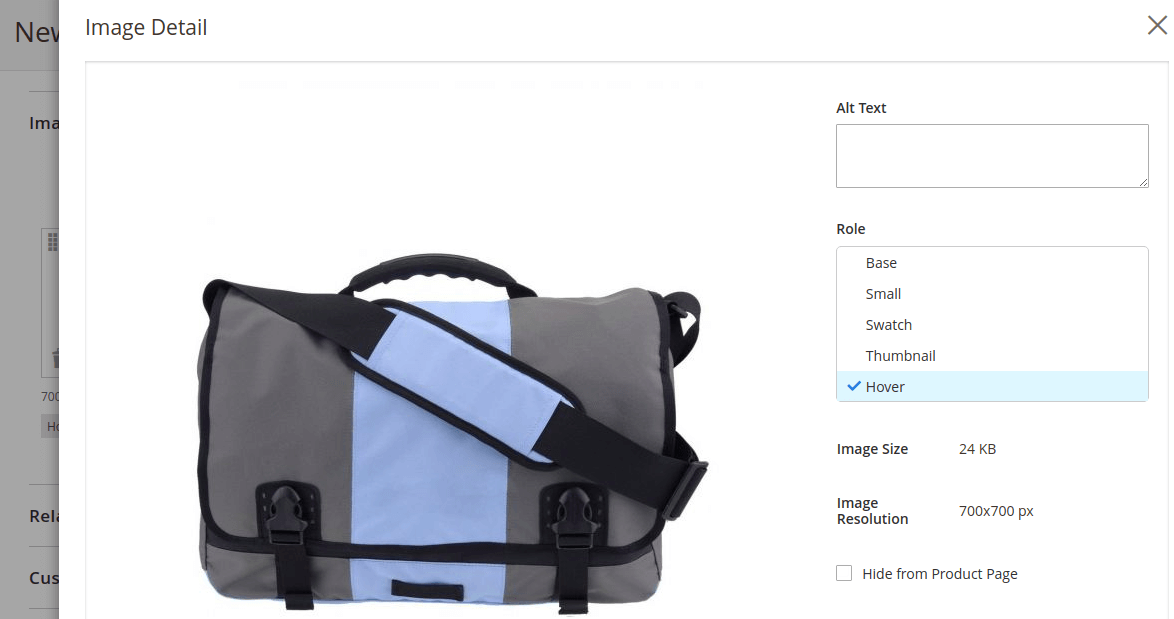
After setting the image, you will able to see the hover image on each and every Magento 2 default listing.
If you have developed your own module and you are not utilizing the default image block then you can get the hover image data using the below code.
<?php
/**
* @var MagentoFrameworkPricingHelperData
*/
protected $priceHelper;

$this->imageHelper->init($product, 'category_page_grid')->getUrl();
Main advantage of using product attribute as a hover image is, you can use it while importing product images using CSV.
Conclusion
To display hover image on product listing page is very easy and don’t need a costly extension. In your custom module, you can easily code functionality by following the above steps. Got error? Feel free to write in the comment box below.