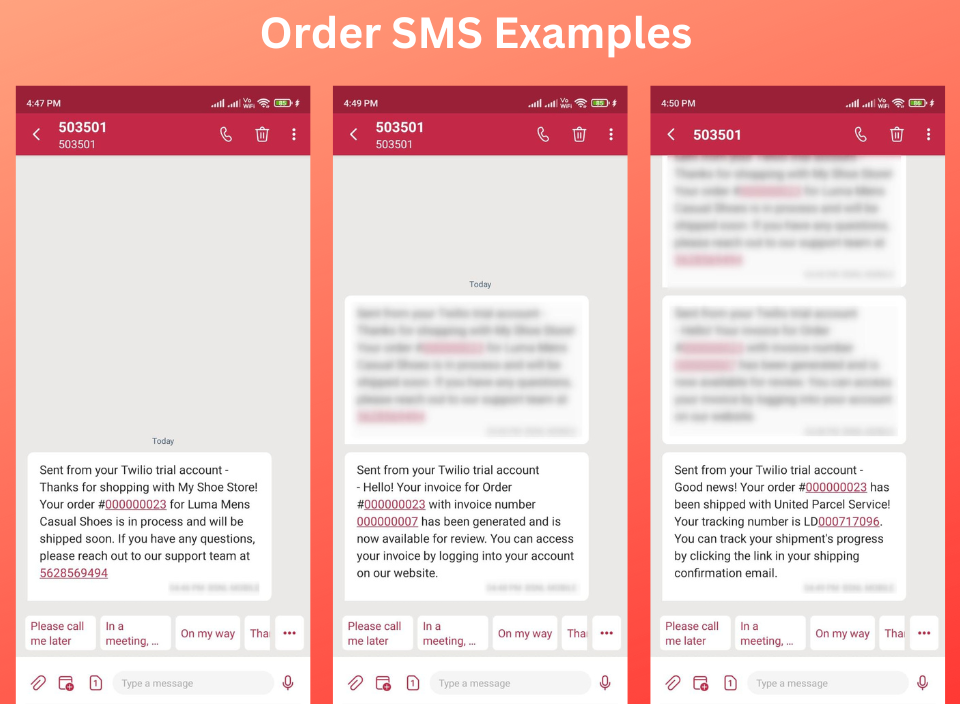


Magento 2 ships with a powerful email‑notification system out of the box, allowing store owners to keep customers informed about order status, shipping updates, and more. Yet in today’s mobile‑first world, SMS notifications have a significantly higher open rate than email. Whether it’s an order confirmation or a shipping alert, SMS ensures your customers never miss an important update.
When it comes to SMS providers, Twilio is a leader in the space, offering a robust API, global reach, and a simple pricing model. Other popular options include Nexmo (Vonage), Plivo, and Textlocal, but Twilio’s extensive documentation and community support make it the go‑to choice for many eCommerce vendors.
In this post we’ll walk through a practical, step‑by‑step approach to sending SMS notifications in Magento 2 with the MageArmy Magento 2 SMS Notification – Twilio extension.
Steps to Add Twilio SMS Notification in Magento 2 Store
Step 1: Download and Install Twilio SMS Notification Extension
Navigate to the MageArmy product page and download the Magento 2 Twilio SMS Notification extension.
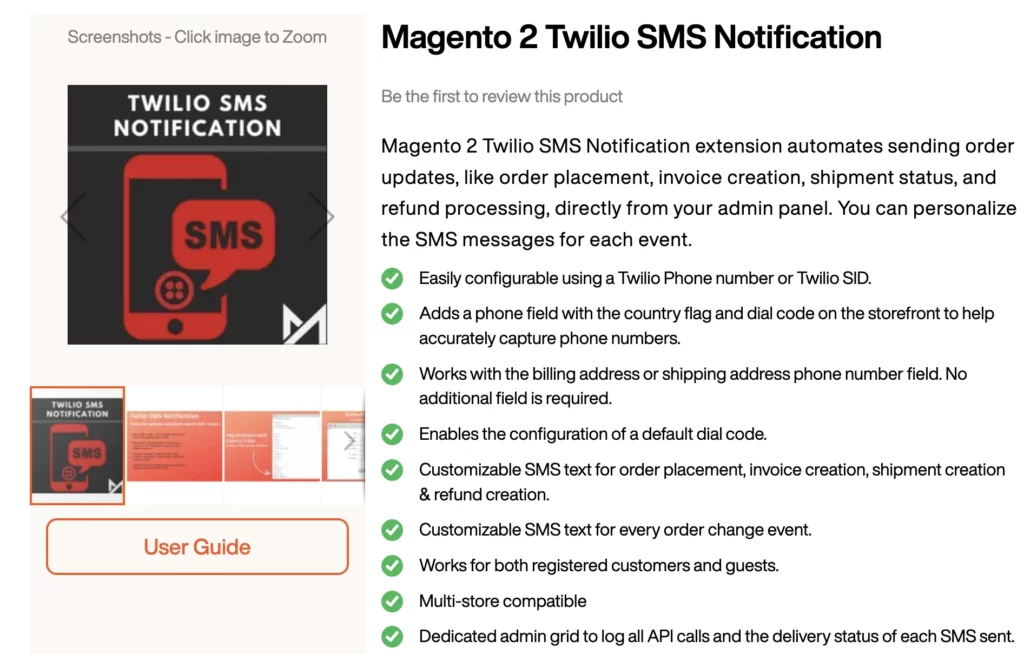
After downloading the extension follow the installation guide to install the extension in your store.
Step 2: Get Your Twilio API Credentials
Before configuring the extension, you’ll need your Twilio API credentials. These allow Magento 2 to communicate with Twilio’s SMS gateway.
Here’s how to get them (as explained in the official user guide):
- Go to Twilio’s official website.
- Sign up for a free account (or log in if you already have one).
- Once logged in, navigate to the Twilio Console Dashboard.
- Here, you’ll find your: Account SID, Auth Token & Twilio Phone Number (the number you’ll send SMS messages from)
- Copy these credentials, you’ll need them in the next step for configuration in Magento.
Step 3: Configure the Extension
Once the module is installed, you’ll see a new Twilio SMS section in your Magento admin under Stores → Configuration → MageArmy → Twilio SMS.
Enter your Twilio Account SID, Auth Token, and Sender Number.
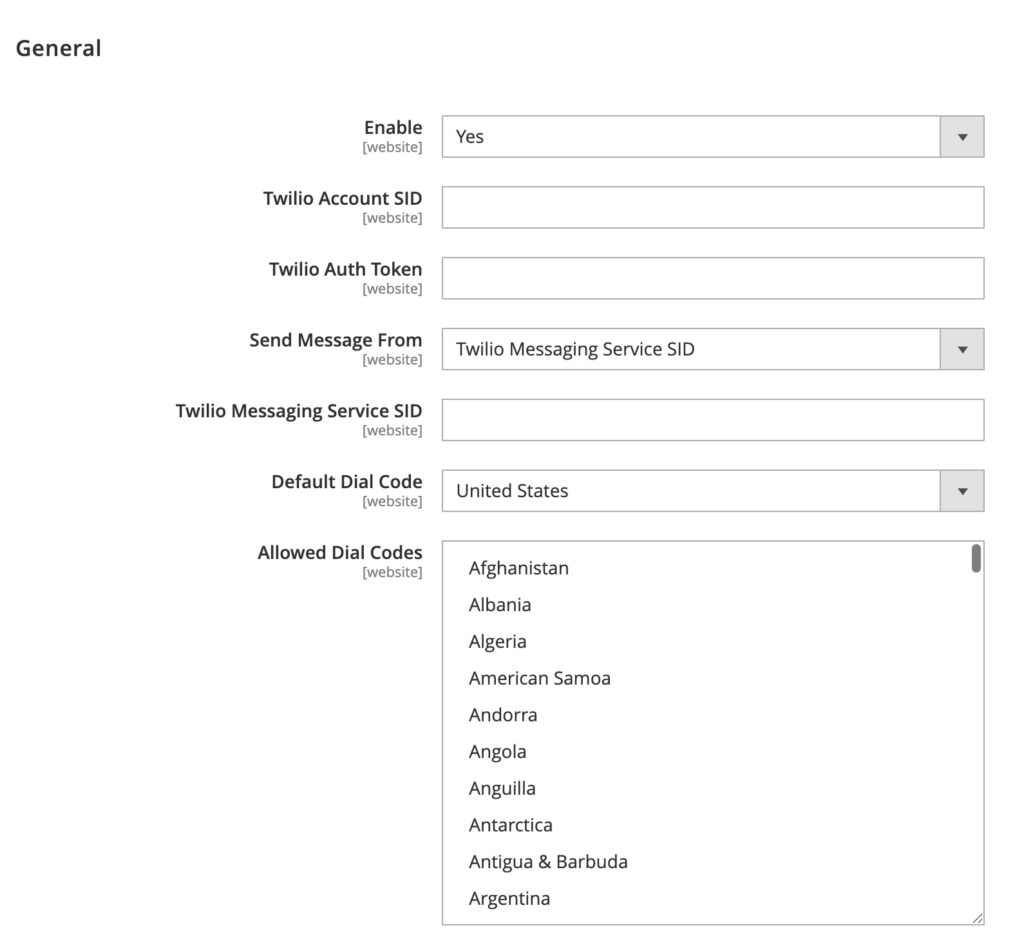
Enable SMS notifications for the desired events Order Placed, Order Shipped, Order Canceled, Invoice Created, Credit Memo Generated etc.
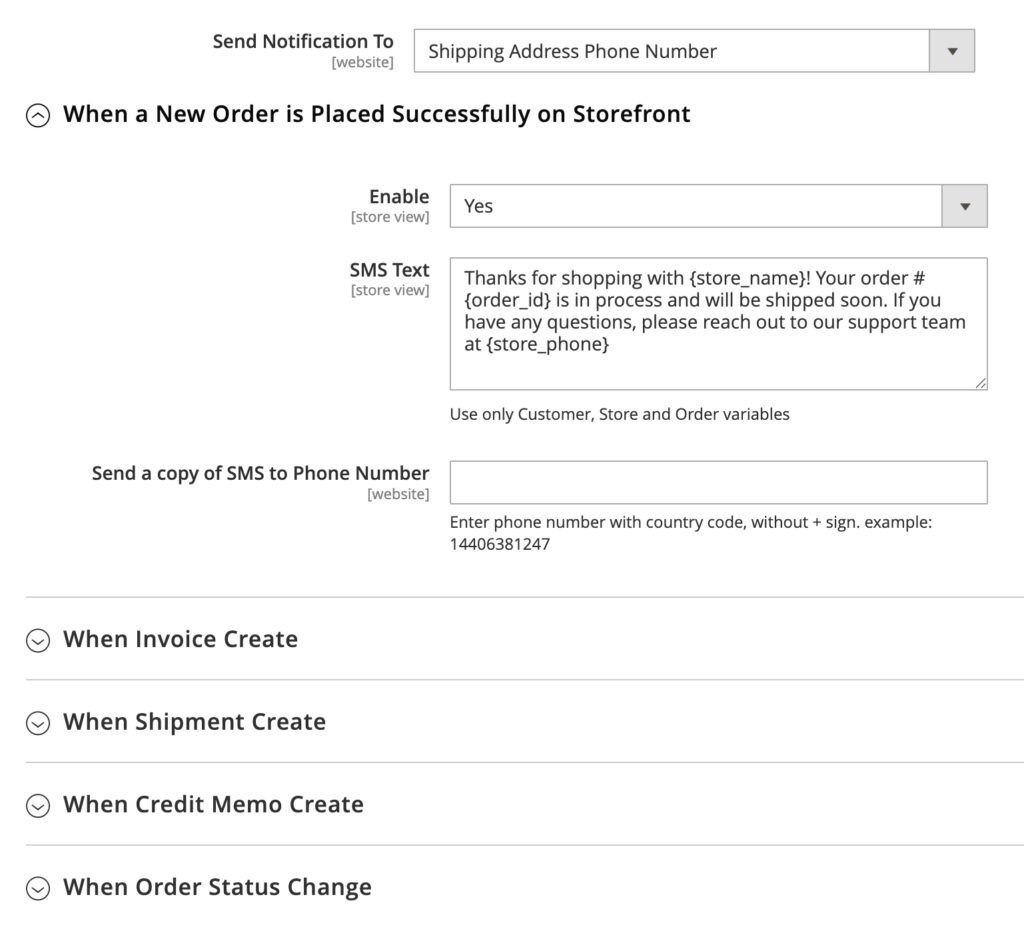
Save the configuration and send a test SMS to confirm that your setup is working.
Step 4: Test Your SMS Workflow
Now, let’s test how it looks and works on the storefront.
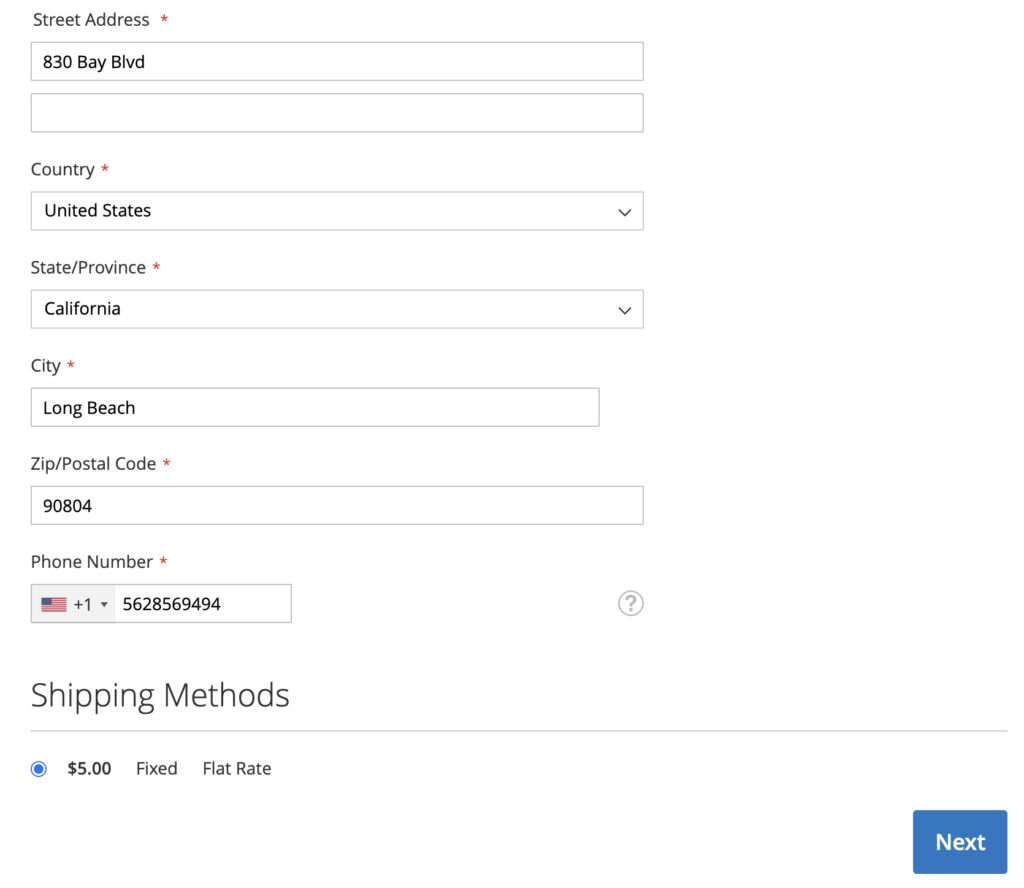
- Go to your Magento 2 checkout page.
- You’ll notice a phone number input field with an international flag dropdown, this allows customers to select their country code easily.
- When a customer places an order, the system will automatically send an SMS notification based on your configured events.
- This intuitive design makes it easier for customers to input accurate phone numbers, ensuring your messages always reach the right person, no matter where they’re located.
With the MageArmy Twilio SMS Notification Extension, integrating Twilio into your Magento 2 store is simple and efficient. Whether you want to keep customers updated on their orders or get admin alerts in real time, this extension has you covered, all powered by Twilio’s trusted API.