



Magento 2 ships with the Luma theme as its default starting point. Many merchants build their sites on Luma, and popular themes such as Pearl and Porto even extend it. While those themes give you a lot of design options, they also bring Luma’s heavy weight with them. Luma loads dozens of JavaScript libraries and several CSS files, which slows page rendering, hurts load times, and drags down Google PageSpeed Insights scores. For merchants, that slowdown translates into lower SEO rankings, a poorer user experience, and fewer conversions.
That’s exactly what the Hyvä theme is designed to fix. Instead of building on top of Luma, Hyvä starts from scratch with performance in mind. It’s built with Tailwind CSS and Alpine.js, relies mainly on vanilla JavaScript for interactivity, and bundles everything into a single, ultra‑lightweight CSS file. The result is faster page loads, higher Core Web Vitals scores, and a smoother, more efficient developer workflow.
Hyvä Theme Architecture Overview
Hyvä isn’t just a look‑and‑feel change, it completely changes how the Magento 2 frontend works.
Instead of using old libraries like RequireJS, Knockout.js, and jQuery, Hyvä cuts the stack down to only what’s needed and replaces them with:
- Vanilla JavaScript & Alpine.js – light, modern interactivity
- Tailwind CSS – a utility‑first framework that creates a small, optimized stylesheet
- Fewer Dependencies – no Knockout, no RequireJS, and no heavy third‑party JS
- GraphQL Support – smooth data fetching that works with Magento’s API features
- Simplified Development – clean code that speeds up building and customizing
How to Install Hyvä Theme in Magento 2?
Getting Hyvä set up is easy once you have a license. The steps below walk you through the whole process.
Hyvä License (Now Free & Open Source)
Until recently, the Hyvä Theme was a commercial product priced at €1,000 per project/domain, which included access to updates, documentation, and community support. However now the Hyvä theme is completely free and open source. This means
- No license purchase required
- Free to use on unlimited Magento 2 projects
- Full access to the source code
- Access to the Hyvä community Slack channel
This transition from a premium product to a fully open source solution makes Hyvä one of the most powerful and accessible frontend options available for Magento 2 today.
Step-by-Step Hyvä Installation Using Hyvä Private Packagist
Follow these steps to install Hyvä theme in your Magento 2 instance
Step 1. Create a Hyvä account
– Visit: https://www.hyva.io/customer/account/create/
– Fill in your name, email, and password and complete the registration process.
– Verify your email if Hyvä sends a confirmation message.
Step 2. Open the Hyvä license dashboard
– After logging in, go to the license page where keys are managed: https://www.hyva.io/licenses/manage/shops/
– This page shows your registered shops/domains and existing packagist keys (if any).
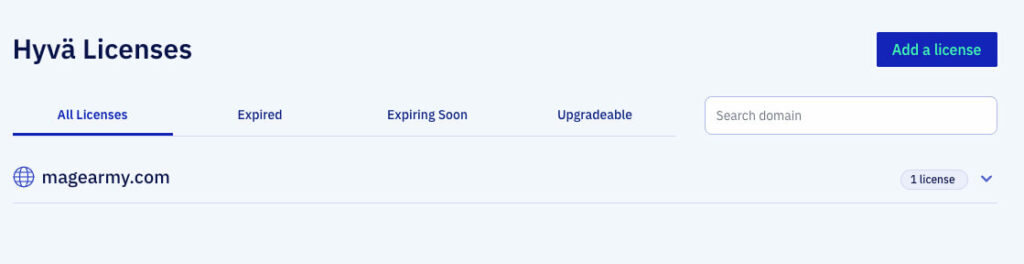
Step 3. Request a free Hyvä Theme packagist key
– On the Hyvä Licenses page, click the “Add a license” button.
– Then click the “Hyva Theme” option from the pop-up.
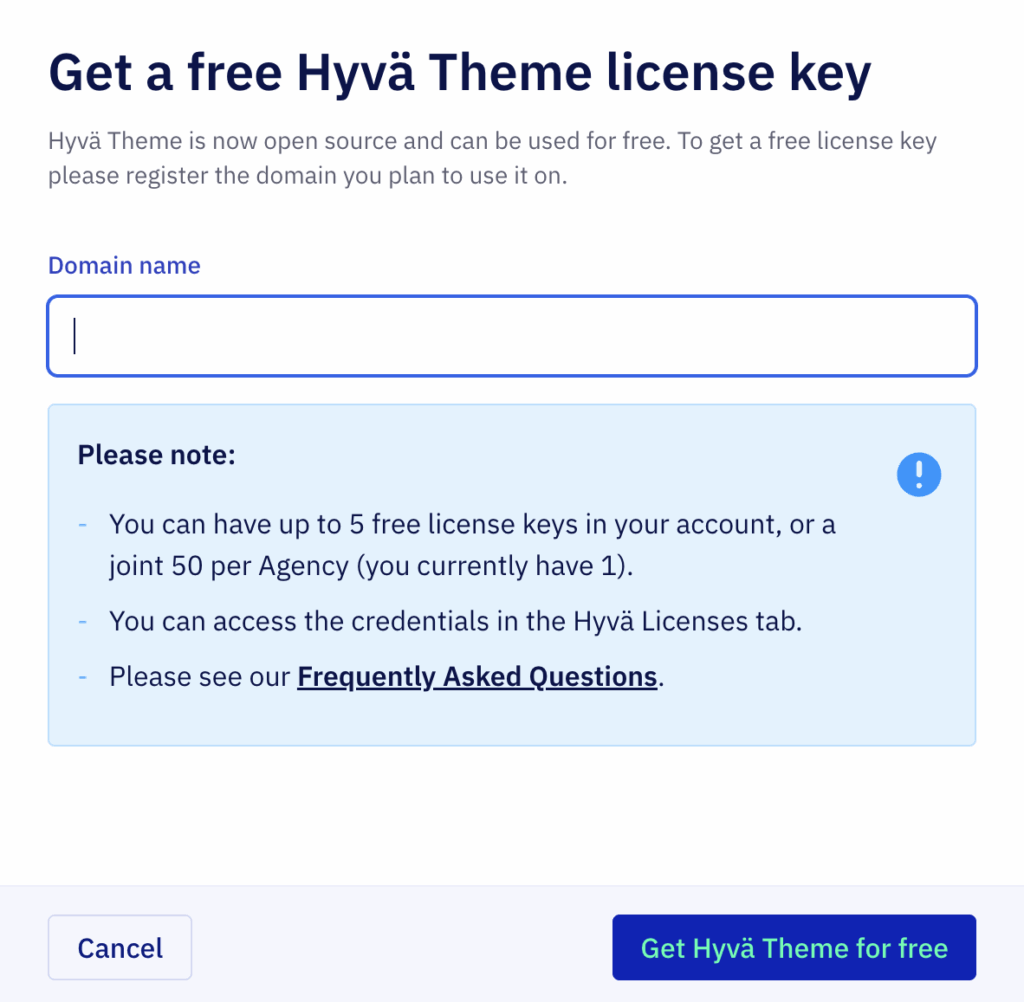
– Enter the domain and submit the form.
– Hyvä will generate a Packagist token/key linked to that domain and show it in the dashboard.
Step 4. Retrieve composer credentials for your domain
– Click the domain entry you just created in the dashboard. The UI will reveal the Composer credentials.
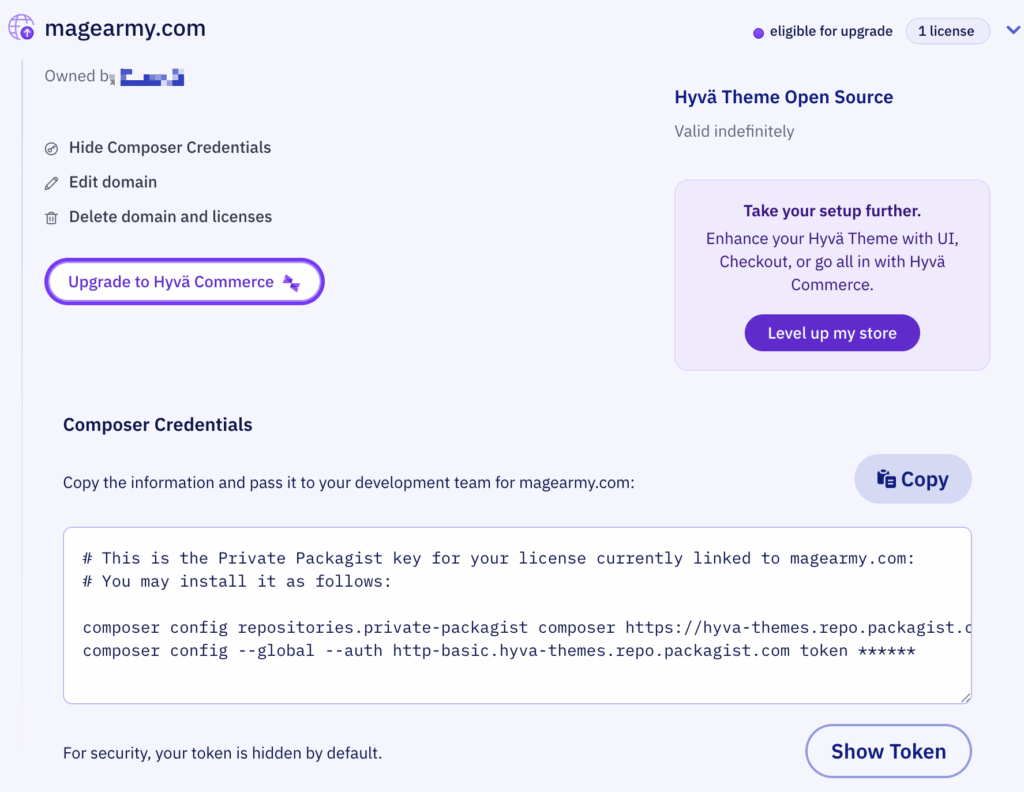
Step 5. Run Composer Commands
# 1) Add your packagist auth token to Composer (replace with your actual token)
# replace yourLicenseAuthentificationKey with the key shown in Hyvä dashboard
composer config --auth http-basic.hyva-themes.repo.packagist.com token yourLicenseAuthentificationKey

# 2) Configure the private-packagist repository for your project
# replace yourProjectName with the project name shown/used in the dashboard
composer config repositories.private-packagist composer https://hyva-themes.repo.packagist.com/yourProjectName/

composer require hyva-themes/magento2-default-theme

bin/magento setup:upgrade
Step 6. Activate the Hyvä theme in Admin
– Log in to Magento Admin.
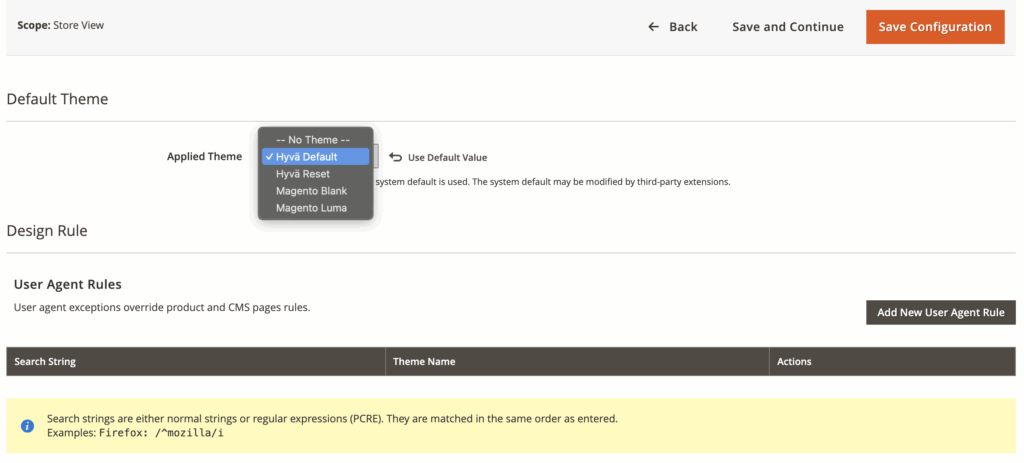
– Go to Content → Design → Configuration.
– Edit the store view you want to change.
– In the theme dropdown set Hyvä Default as the active theme and save.
Step 7. Deploy static content & flush cache
bin/magento setup:static-content:deploy -f
bin/magento cache:flush
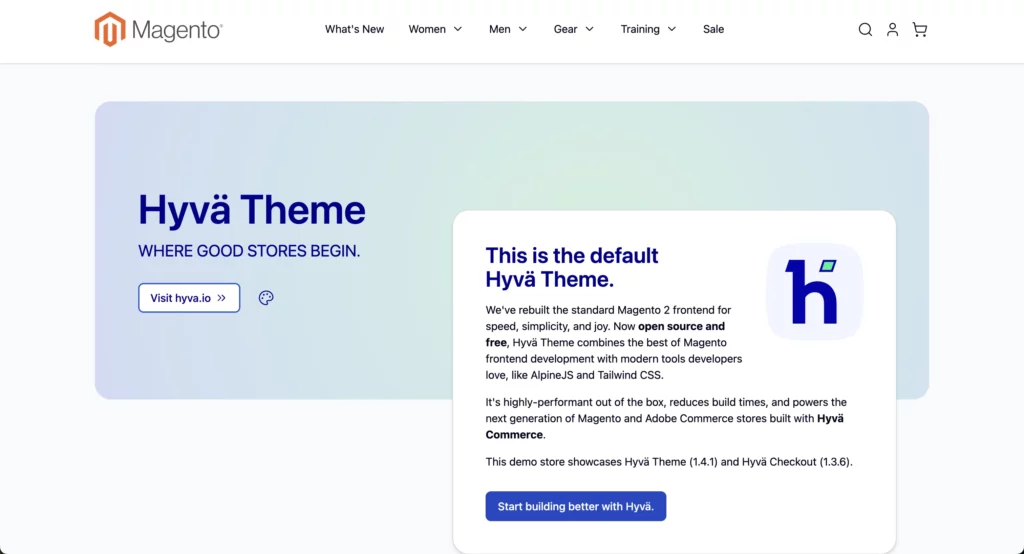
Step 8. Verify the storefront
– Visit the storefront (the domain you used when creating the Hyvä key) and verify the theme is active
Step 9. Additional Steps
Hyva does not support the default captcha provided by Magento. Instead, it supports Google reCAPTCHA, so you need to disable the default captcha using the command below.
bin/magento config:set customer/captcha/enable 0Hyva does not support or recommend minifying and merging CSS, JS, and HTML. Therefore, you need to disable it using the commands below.
bin/magento config:set dev/template/minify_html 0
bin/magento config:set dev/js/merge_files 0
bin/magento config:set dev/js/enable_js_bundling 0
bin/magento config:set dev/js/minify_files 0
bin/magento config:set dev/js/move_script_to_bottom 0
bin/magento config:set dev/css/merge_css_files 0
bin/magento config:set dev/css/minify_files 0
The Hyvä theme has been installed successfully. If you encounter any issues, please refer to the official Hyvä user guide. It is not recommended to directly modify the default Hyvä theme. If you want to change the look and feel of the default theme, you should create a child theme. Please follow this guide to create a Hyvä child theme.
Step-by-Step Hyvä Installation Using Github Packages
Follow these steps to install Hyvä theme in your Magento 2 instance from Github
Step 1. Configure all required repositories in your composer
Run below commands to install all required modules
composer config repositories.hyva-themes/magento2-theme-module git https://github.com/hyva-themes/magento2-theme-module.git
composer config repositories.hyva-themes/magento2-default-theme git https://github.com/hyva-themes/magento2-default-theme.git
composer config repositories.hyva-themes/magento2-default-theme-csp git https://github.com/hyva-themes/magento2-default-theme-csp.git
composer config repositories.hyva-themes/magento2-base-layout-reset git https://github.com/hyva-themes/magento2-base-layout-reset.git
composer config repositories.hyva-themes/magento2-compat-module-fallback git https://github.com/hyva-themes/magento2-compat-module-fallback.git
composer config repositories.hyva-themes/magento2-mollie-theme-bundle git https://github.com/hyva-themes/magento2-mollie-theme-bundle.git
composer config repositories.hyva-themes/magento2-luma-checkout git https://github.com/hyva-themes/magento2-luma-checkout.git
composer config repositories.hyva-themes/magento2-theme-fallback git https://github.com/hyva-themes/magento2-theme-fallback.git
composer config repositories.hyva-themes/magento2-order-cancellation-webapi git https://github.com/hyva-themes/magento2-order-cancellation-webapi.git
composer config repositories.hyva-themes/magento2-email-module git https://github.com/hyva-themes/magento2-email-module.git
Step 2. Install Hyva theme package
Run below composer command to install Hyva default theme
composer require hyva-themes/magento2-default-theme
bin/magento setup:upgrade
Now follow the steps 6 to 9 from previous method
Hyvä Compatible Extensions
Because Hyvä uses a modern front‑end stack, not every Magento 2 extension will work out of the box. That’s why you need to pick extensions that are made for Hyvä.
At MageArmy, we offer a variety of Hyvä‑ready Magento 2 extensions. Here are our top three recommended modules:
- Magento 2 City Dropdown Manager
Convert Magento 2’s default city text input field to an intelligent dropdown selector. Compatible with Hyvä Theme & Hyvä Checkout. - Magento 2 International Telephone Input & Validation
Improve checkout UX by allowing customers to enter their phone number in the correct international format with real-time validation. Seamlessly integrates with Hyvä’s lightweight frontend. - Magento 2 Category Wise FAQ
Enhance user experience by displaying organized FAQs. Hyvä compatibility ensures FAQs load instantly without affecting site speed.